A computer monitor affects comfort, productivity, and image quality—choose one that matches your workspace, resolution needs, and budget, then calibrate, position, and tweak settings for the best results.
Introduction
A computer monitor is the most visible part of your setup, and the wrong choice can cause eye strain, wasted time, and poor color accuracy. This article is informational and practical: I'll help you pick the right display, set it up, and optimize settings for work, creative tasks, or gaming. Early on we’ll touch on resolution, refresh rate, and color accuracy—common factors that determine why a monitor matters. You’ll get hands-on steps, quick troubleshooting, recommended tools, and an accessibility-friendly checklist to follow. In my experience, a small investment in the right monitor and a proper setup pays back in comfort and speed.
What a computer monitor is and why it matters
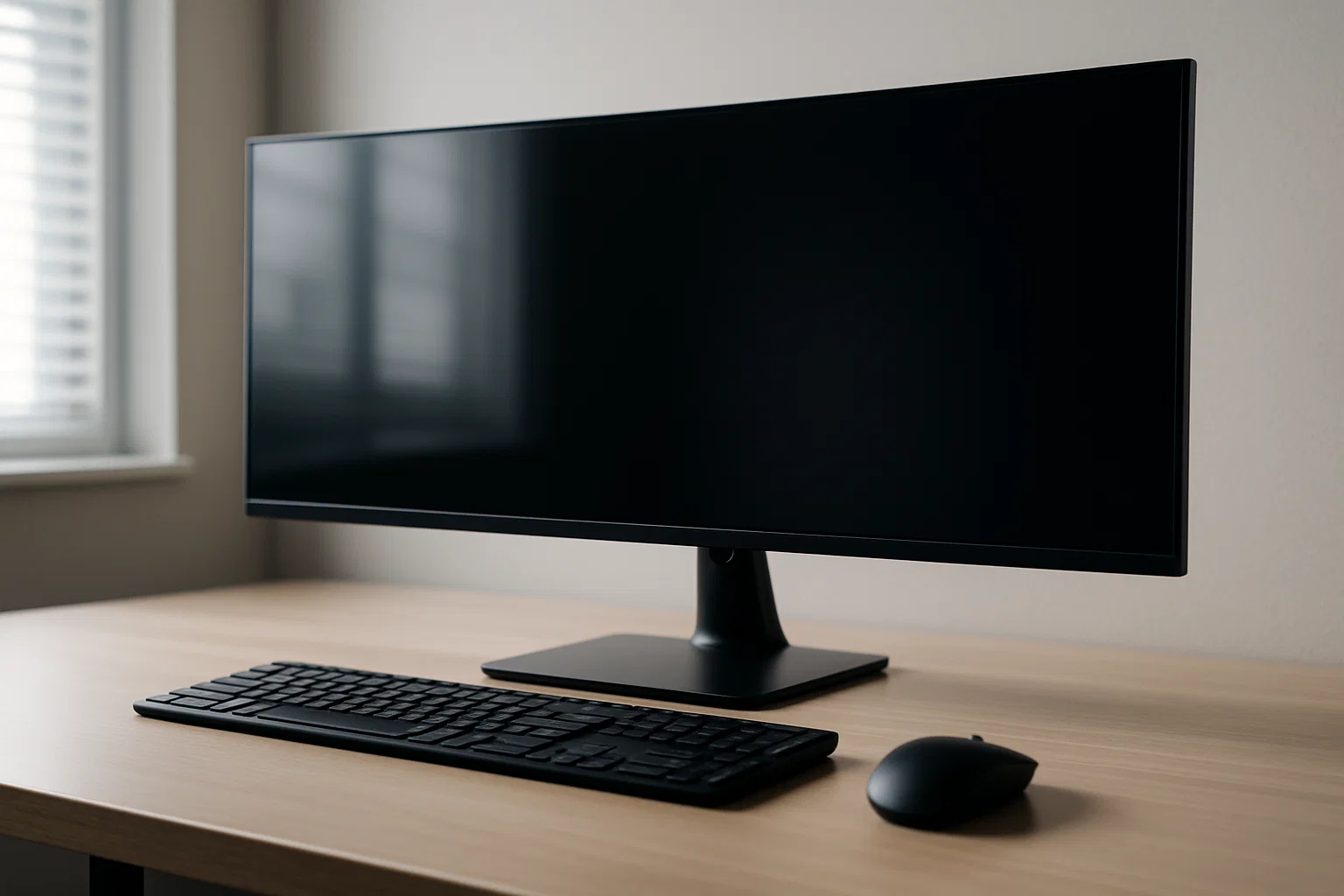
A computer monitor is the visual interface between you and your computer. It translates digital pixels into an image you can read and interact with. That sounds simple, but display tech, size, resolution, and color handling directly affect how clear, fast, and realistic that image looks.
Key display concepts explained
Resolution — the number of horizontal and vertical pixels. Higher resolution means more workspace and finer detail.
Refresh rate — how many times the screen updates per second, measured in hertz. Higher rates reduce motion blur.
Panel type (IPS, VA, TN) — determines color accuracy, viewing angles, and response time. IPS is popular for color and viewing angles, VA for contrast, TN for speed.
Color gamut and calibration — how many colors the monitor can show and how accurately. Useful for photo, video, and design work.
Why it matters for different users
- Productivity: More screen real estate and higher resolution let you see more documents and code side-by-side.
- Design and content creation: Color accuracy and calibration are essential.
- Gaming: Refresh rate and low response time reduce motion blur and input lag.
- General use: Ergonomics and flicker-free tech reduce eye strain.
Background and evolution
Monitors evolved from CRTs to flat LCDs and now to high-refresh IPS, OLED, and mini-LED displays. Each generation improved clarity, contrast, and power use. Today, choices are driven by the tradeoffs between price, pixel density, and specialized features like HDR or adaptive sync.
Paraphrase of an industry note: Recent display tech prioritizes higher dynamic range and local dimming to improve contrast and realism (display industry sources).
Paraphrase of guidance from search authorities: Clear, descriptive titles and meta descriptions improve CTR and search relevance (search guideline sources).
How to choose, set up, and optimize — a practical guide
Follow these numbered steps to pick and optimize your monitor. This section is practical and copy-paste friendly where code is useful.
Step 1: Define your needs
- List primary tasks: coding, photo editing, gaming, spreadsheets, or mixed use.
- Prioritize features: resolution, refresh rate, color accuracy, size, budget.
- Check GPU outputs: ensure your computer has HDMI 2.0/2.1 or DisplayPort support for chosen resolution/refresh.
Step 2: Choose specs for your use case
- Office/productivity: 24–27 inch, 1080p–1440p, IPS.
- Design/video: 27–32 inch, 1440p–4K, IPS, 100% sRGB or better, hardware calibration support.
- Gaming: 24–34 inch, 1080p–1440p or ultrawide, 144Hz+, G-Sync or FreeSync.
Step 3: Connect and configure
- Use the right cable (DisplayPort for high refresh, HDMI for broad compatibility).
- Set native resolution in OS display settings.
- Enable adaptive sync if available and supported by GPU.
Step 4: Calibrate and profile
Use a hardware calibrator or software tools to set gamma, white point, and brightness. For quick improvement, use built-in presets (sRGB for general use, Movie for video).
Quick copy-paste setup script (Node.js)
This simple Node.js script uses node-display-control (example) to set resolution and brightness on supported systems. It's a starting point; actual support depends on your platform and drivers.
// node.js example to change display settings (pseudo-code)
// requires a system-specific library, this is illustrative only
const display = require('node-display-control'); // hypothetical package

async function setDisplay(resWidth, resHeight, brightness) {
  try {
    // list displays, pick the primary
    const displays = await display.list();
    const primary = displays.find(d => d.isPrimary);
    // set resolution
    await display.setResolution(primary.id, resWidth, resHeight);
    // set brightness (0-100)
    await display.setBrightness(primary.id, brightness);
    console.log('Display configured');
  } catch (err) {
    console.error('Could not set display:', err.message);
  }
}

// Example: set to 2560x1440 and 70% brightness
setDisplay(2560, 1440, 70);
Explanation: This example shows the logic to programmatically adjust resolution and brightness. Replace with a real library for your OS. Minimal error handling included.
Step 5: Position and ergonomics
- Top of screen at or slightly below eye level.
- 20–30 inches from eyes for most sizes.
- Tilt and swivel to avoid glare.
Best practices, recommended tools, pros and cons
Here are practical tips and three tool recommendations.
Best practices
- Always use native resolution for the sharpest text.
- Reduce blue light at night with night mode.
- Match brightness to ambient light to avoid eye strain.
- Use a calibrated color profile for creative work.
Tool recommendations
1. Calibrite ColorChecker (hardware calibrator)
Pros: Accurate hardware profiling, widely used by professionals.
Cons: Costlier than software-only options.
Install/start tip: Plug in device, download vendor app, follow one-button calibration.
2. DisplayCAL (free software calibration)
Pros: Powerful, free, supports many probes.
Cons: Steeper learning curve.
Install/start tip: Install Python dependencies, connect your probe, and run the guided calibration.
3. Custom Resolution Utility (CRU) (advanced)
Pros: Fine control over timing and custom resolutions.
Cons: Risky if misused, advanced tool.
Install/start tip: Use presets and back up original settings before applying changes.
Pros/Cons summary: Hardware tools offer the best accuracy, software tools are affordable and flexible, advanced utilities give control but need care.
Challenges, compliance, and troubleshooting
Common challenges
- Fuzzy text: Often caused by non-native resolution or incorrect scaling.
- Flicker or artifacts: Cable or driver issues. Try a different port or update GPU drivers.
- Color shift at angles: Panel limitation; IPS reduces this.
Troubleshooting checklist
- Confirm native resolution and scaling.
- Swap cables and ports.
- Update GPU drivers.
- Try a different monitor to isolate hardware issues.
Compliance and ethical considerations
If you work with user data or medical imaging on a monitor, ensure displays meet relevant accuracy standards and privacy rules. For regulated industries, follow internal policies and external standards.
Compliance checklist
- Use secure storage for calibration profiles when required.
- Maintain a record of calibration for regulated work.
- Confirm monitor meets industry color standards if required.
- Ensure workspace ergonomics meet occupational safety policies.
Alternatives
- Use a laptop external screen for portability.
- Rent calibrated displays for short-term color-critical projects.
Accessibility & readability considerations
- Increase text scaling for visually impaired users.
- Choose low-glare matte finishes where possible.
- Provide alternative means (screen readers) and ensure high contrast in UI design.
Conclusion + CTA
Choosing and optimizing a computer monitor is a practical investment in comfort and efficiency. Pick specs that match your tasks, set up ergonomically, and calibrate when color or clarity matters. Bold takeaways: choose native resolution, prioritize ergonomics, and calibrate for color work. Welcome to Alamcer, a tech-focused platform created to share practical knowledge, free resources, and bot templates. Our goal is to make technology simple, accessible, and useful for everyone. We provide free knowledge articles and guides, offer ready-to-use bot templates for automation and productivity, and deliver insights to help developers, freelancers, and businesses. For custom development services for bots and websites, contact Alamcer on request.
Quick quotes & sources
Paraphrase: Search engines reward clear, descriptive titles that match user intent to improve click-through rates (Google).
Paraphrase: Use accurate meta descriptions and structured content to help featured snippets and search performance (Moz).
Further reading:
- Google guidelines on meta descriptions (search authority).
- Moz on meta descriptions and CTR (SEO authority).
- SEMrush resources on keywords and on-page optimization (SEO toolkit).
FAQs
What is computer monitor?
A computer monitor is the display device that shows your computer’s output, translating pixels into a visible image for reading, design, and interaction. Monitors differ by size, resolution, panel type, and features like refresh rate.
How do I choose the right monitor for work?
Decide on screen size and resolution based on your workspace and multitasking needs, prefer IPS panels for color and viewing angles, and ensure ergonomic adjustability to reduce strain.
Is 4K overkill for everyday tasks?
4K gives more workspace and sharper text, but smaller screens can make UI elements tiny. Use scaling if needed and ensure your GPU can handle it.
How often should I calibrate my monitor?
For color-critical work calibrate monthly, for general use calibrate every few months or after major driver/firmware changes.
Does refresh rate matter for office work?
Not significantly; 60–75Hz is fine for documents and spreadsheets. Higher refresh rates benefit gaming and motion-heavy tasks.
How do I fix fuzzy text on Windows?
Set the display to native resolution, adjust scaling in settings, and run ClearType text tuner to improve font rendering.
Can I use a monitor as a TV?
Yes, if it has suitable inputs and built-in speakers or you add external audio. Be mindful of burn-in risk on some panel types.
Are curved monitors better?
Curved monitors improve immersion on wide and ultrawide formats, but may not be ideal for multi-monitor straight-edge setups or tasks requiring ruler-straight lines.
How do I set up multiple monitors?
Connect both displays, set primary display in OS settings, decide arrangement (extend/mirror), and match resolution/scaling to avoid layout issues.
Does screen calibrator software really help?
Yes, especially when combined with a hardware probe, calibration aligns color, gamma, and white point for reliable output across devices.
Compliance & disclaimer
This guide provides general advice and is not a substitute for professional consultation. For specific legal or medical display requirements, consult a qualified professional. Respect privacy and terms of service when handling user data, and follow GDPR/CCPA where applicable.
Key takeaways
- Pick the monitor that matches your primary tasks.
- Use native resolution and correct cables.
- Calibrate for color-critical work and set ergonomic position.