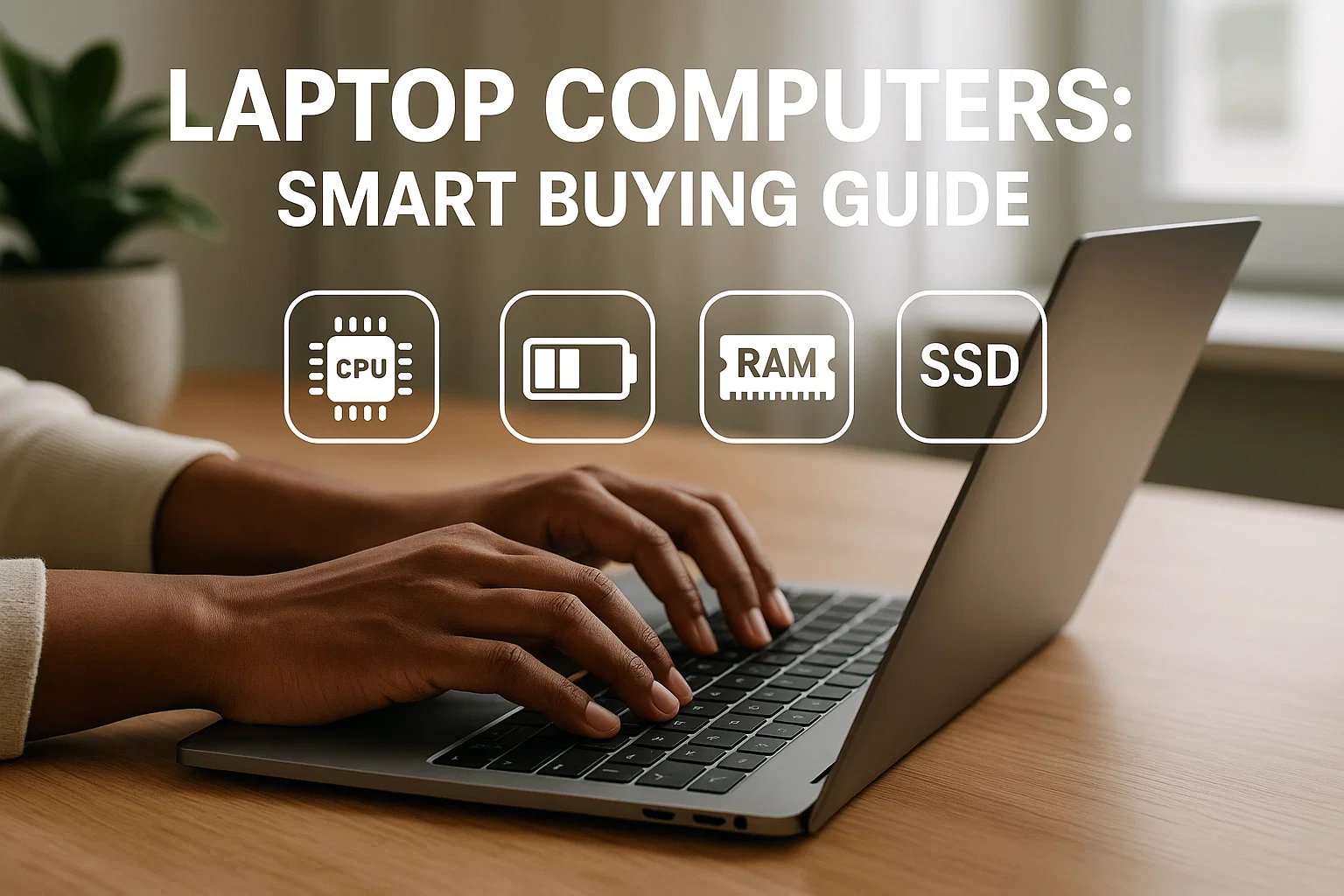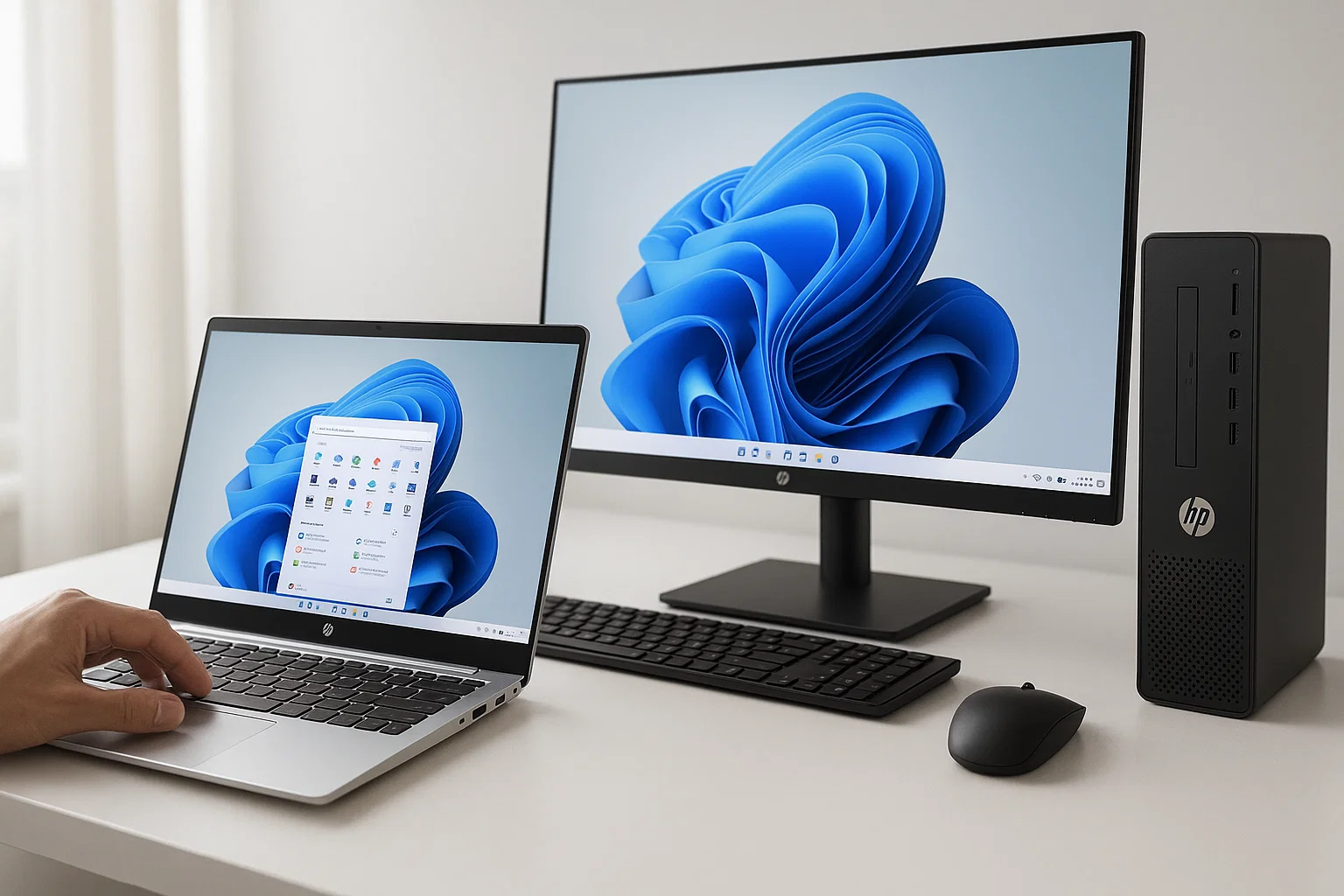
HP computers offer a broad range of laptops and desktops for work, gaming, and business; this guide helps you compare series, choose specs, and set up devices quickly so you buy the right model with confidence.
Introduction
HP computers are everywhere, from student laptops to high-performance gaming machines. This article is informational and practical: you’ll learn how HP’s product lines differ, what matters when you compare specs, and simple steps to pick and set up the perfect system. I’ll also point out resources like official HP support and buying tools that make research faster. In my experience, focusing on real-world needs — battery life, ports, and warranty — saves both time and money when shopping.
Understanding HP computers and why they matter
HP sells a wide range of computers, from budget notebooks to premium business workstations and gaming rigs. Knowing how HP organizes its lineup helps you narrow choices fast.
HP product families
- HP Pavilion, entry-level and mainstream laptops and desktops for everyday tasks.
- HP Envy, premium consumer laptops with better displays and build.
- HP Spectre, top-tier Windows ultraportables with refined design.
- HP ProBook / EliteBook, business-focused machines with security and manageability.
- HP Omen, gaming desktops and laptops optimized for graphics and cooling.
Why HP matters for buyers
HP balances price, availability, and service. You can get a reliable work laptop, an affordable desktop, or a powerful gaming system with brand warranty and broad retail support. For businesses, HP offers manageability tools and extended warranty options that matter for uptime.
HP emphasizes tailored hardware options and service plans to fit business and consumer needs. (hp.com)
Choosing a device aligned to your workload reduces long-term costs and improves productivity. (Moz)
Key specs that influence value
- Processor: For most users, mid-range multi-core CPUs are ideal. Heavy video editing needs high-core-count CPUs.
- Memory: 8GB is minimal for casual use; 16GB is the sweet spot for most power users.
- Storage: NVMe SSDs make a huge real-world difference in speed versus HDD.
- GPU: Integrated graphics are fine for office tasks; dedicated GPUs are required for gaming and 3D work.
- Battery & ports: Check real-world battery tests and available ports (USB-A, USB-C, HDMI) for compatibility.
How to choose and set up an HP computer — step-by-step
This section is a practical how-to: choose the right HP model, configure it, and complete a fast setup.
- Define your primary use
- Work (documents, video calls): prioritize battery, webcam, microphone.
- Content creation: prioritize CPU cores, RAM, and color-accurate display.
- Gaming: prioritize GPU, cooling, refresh-rate display.
- Shortlist models
- Use HP’s site filters or retailer pages to compare Pavilion, Envy, Spectre, Omen, ProBook.
- Read 2–3 reviews covering battery, thermals, and long-term reliability.
- Compare specs side-by-side
- Create a quick spreadsheet: model, CPU, RAM, storage, GPU, weight, ports, warranty.
- Choose 2 finalists.
- Check real-world benchmarks and user reviews
- Look for thermal throttling, battery test results, and reported driver issues.
- Buy and quick setup
- On arrival, run Windows Update, install drivers from HP Support Assistant, then set up recovery media.
Quick code: list HP model pages (Node.js)
// Node.js example: fetch a list of product pages (requires node-fetch)
// Minimal error handling for demo only
const fetch = require('node-fetch');

async function getPages(urls) {
  for (const url of urls) {
    try {
      const res = await fetch(url);
      console.log(`Fetched ${url}:`, res.status);
      // parse or save HTML as needed
    } catch (err) {
      console.error(`Error fetching ${url}:`, err.message);
    }
  }
}

// Example usage
getPages([
  'https://www.hp.com/us-en/shop/laptops',
  'https://www.hp.com/us-en/shop/desktops'
]);
Explanation: this script fetches product pages so you can scrape or parse details. Use responsibly, and follow site terms.
Quick code: check disk space (Python)
# python: simple disk usage check
import shutil

def check_disk(path='/'):
    total, used, free = shutil.disk_usage(path)
    # convert to GB
    return total//(2**30), used//(2**30), free//(2**30)

if __name__ == "__main__":
    total, used, free = check_disk()
    print(f"Disk total: {total}GB, used: {used}GB, free: {free}GB")
Explanation: useful after setup to confirm storage capacity and free space.
Best practices, recommended tools, pros and cons
Here are practical tips, tools, and short tradeoffs.
Best practices
- Prioritize SSD storage and 16GB RAM for longevity.
- Keep drivers updated with HP Support Assistant.
- Use a surge protector for desktops.
- Register your warranty online immediately.
Recommended tools
- HP Support Assistant — Pros: automatic driver updates, diagnostics. Cons: can nag for updates. Start tip: open app after first boot and run quick check.
- CrystalDiskInfo — Pros: monitors SSD/HDD health. Cons: Windows-only. Start tip: install and enable S.M.A.R.T. alerts.
- UserBenchmark or Cinebench — Pros: quick performance baseline. Cons: synthetic tests don't reflect battery life. Start tip: run a baseline benchmark before adding software.
Pros and cons of HP computers
- Pros: broad model range, strong warranty options, good retail availability.
- Cons: some models ship with bloatware, and custom OEM configurations can be pricier than DIY builds.
Challenges, compliance, and troubleshooting
Common issues and how to handle them.
Common challenges
- Bloatware and slow first-boot: remove nonessential OEM apps.
- Driver issues: use HP Support Assistant, and if unresolved, download drivers directly from HP support pages.
- Thermals on thin laptops: use a cooling pad, and check power profiles.
Legal and ethical considerations
- When using firmware tools or modifying BIOS, follow HP’s warranty terms. Avoid unauthorized BIOS flashing that voids warranty.
Compliance checklist
- Verify warranty terms and conditions.
- Keep receipts and serial numbers for service claims.
- Ensure data privacy before sending devices for repair, back up and wipe personal data.
- If collecting user data on a company device, comply with privacy laws and policies.
Alternatives: Consider Dell, Lenovo, or custom desktops if you need a specific configuration or prefer different support policies.
Conclusion and CTA
HP computers cover a wide range of needs, from budget tasks to serious gaming and business workloads. Focus on the specs that matter for your daily workflow, and use tools like HP Support Assistant to keep your system healthy. If you want hands-on help, Alamcer offers practical guides, free resources, and ready-to-use bot templates to automate repetitive tasks. Welcome to Alamcer, a tech-focused platform created to share practical knowledge, free resources, and bot templates. Our goal is to make technology simple, accessible, and useful for everyone. We provide free articles and guides, offer ready-to-use automation templates, and deliver custom development for bots and websites on request. Ready to optimize your HP setup? Reach out and we’ll help you choose and configure the right device.
Key takeaways:
- Choose 16GB RAM and NVMe SSD for lasting value.
- Match GPU to your workload: integrated for office, dedicated for gaming.
- Use HP Support Assistant for drivers and diagnostics.
Compliance and disclaimer
This guide is informational only and does not replace professional advice. Product specifications and warranty terms can vary, so consult HP official documentation for final details. For legal or enterprise procurement decisions, consult a professional advisor.
FAQs
What is hp computers?
HP computers refers to the range of laptops and desktops produced by HP, including consumer, business, and gaming models. The lineup includes Pavilion, Envy, Spectre, ProBook, EliteBook, and Omen devices tailored to different needs.
How do I choose the right HP laptop?
Decide on primary use, prioritize CPU, RAM, and storage, and compare models within Pavilion, Envy, Spectre, or business lines. Check real-world battery and thermal reviews.
Are HP laptops good for gaming?
Yes, HP Omen series is built for gaming with dedicated GPUs and cooling. Some Envy models include discrete GPUs suitable for light gaming.
How much RAM do HP computers need?
8GB is minimal, 16GB is recommended for most users, and 32GB+ is ideal for heavy multitasking or professional content work.
Can I upgrade HP desktop memory and storage?
Most HP desktops allow RAM and storage upgrades, but check the specific model’s service manual for compatibility and warranty implications.
How do I update drivers on HP computers?
Use HP Support Assistant or visit HP’s official support site to download and install the latest drivers for your serial number.
What warranty options are available for HP computers?
HP offers standard limited warranties, with optional extended coverage and accidental damage protection. Register your product to access warranty services.
How do I clean and maintain my HP laptop?
Keep vents clear, install updates, use a validated antivirus, and periodically check disk health using tools like CrystalDiskInfo.
Is HP good for business use?
Yes, ProBook and EliteBook lines offer manageability and security features designed for business environments.
How do I prepare my HP computer for repair?
Back up data, remove personal accounts when possible, note serial number and purchase proof, and follow HP’s repair submission process.
External resources
- For Windows installation and setup, see official Windows guidance (Google guidelines).
- For SEO-friendly product content and technical advice, see Moz’s content resources (Moz).
- For performance benchmarking best practices, consult SEMrush analysis guides (SEMrush).