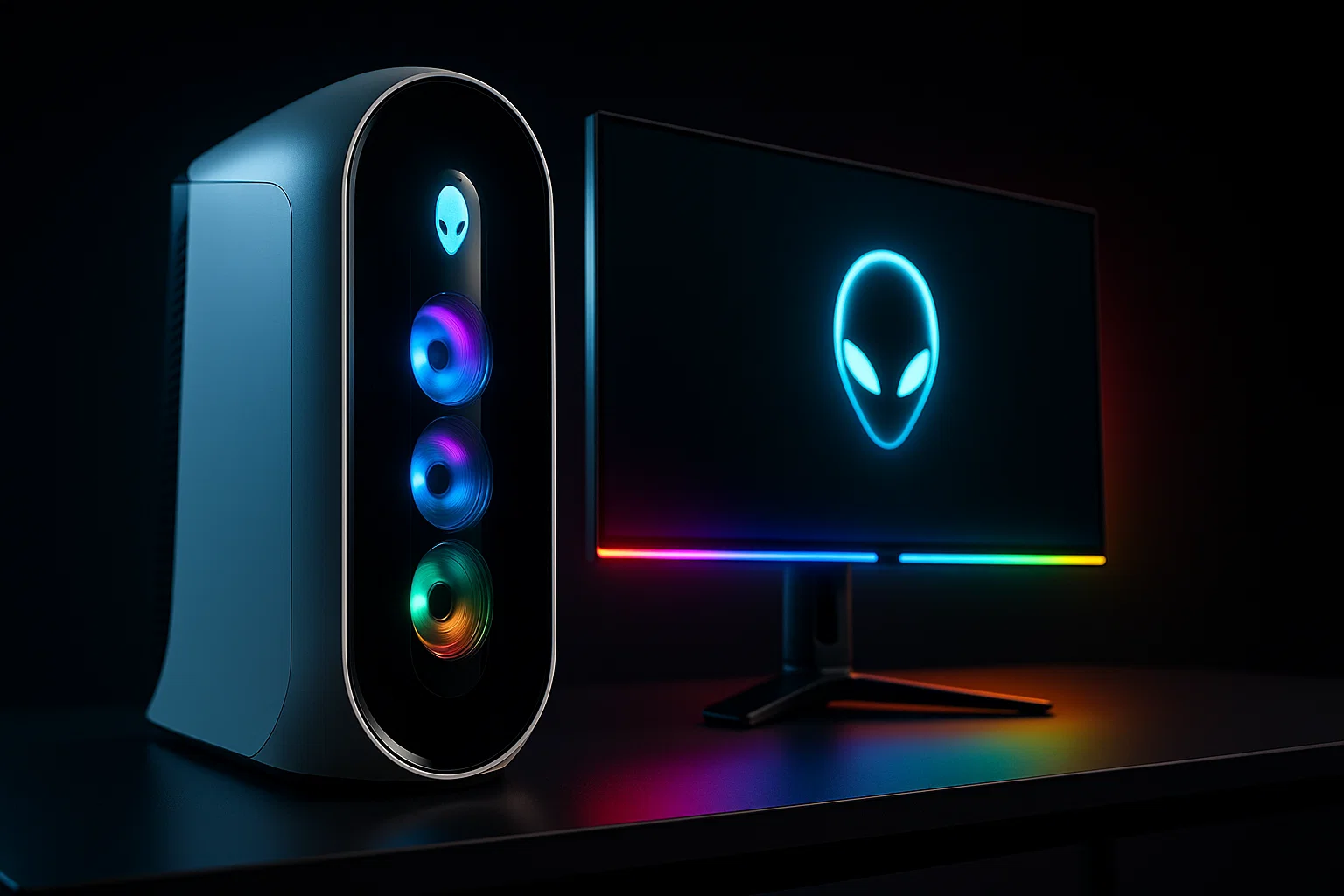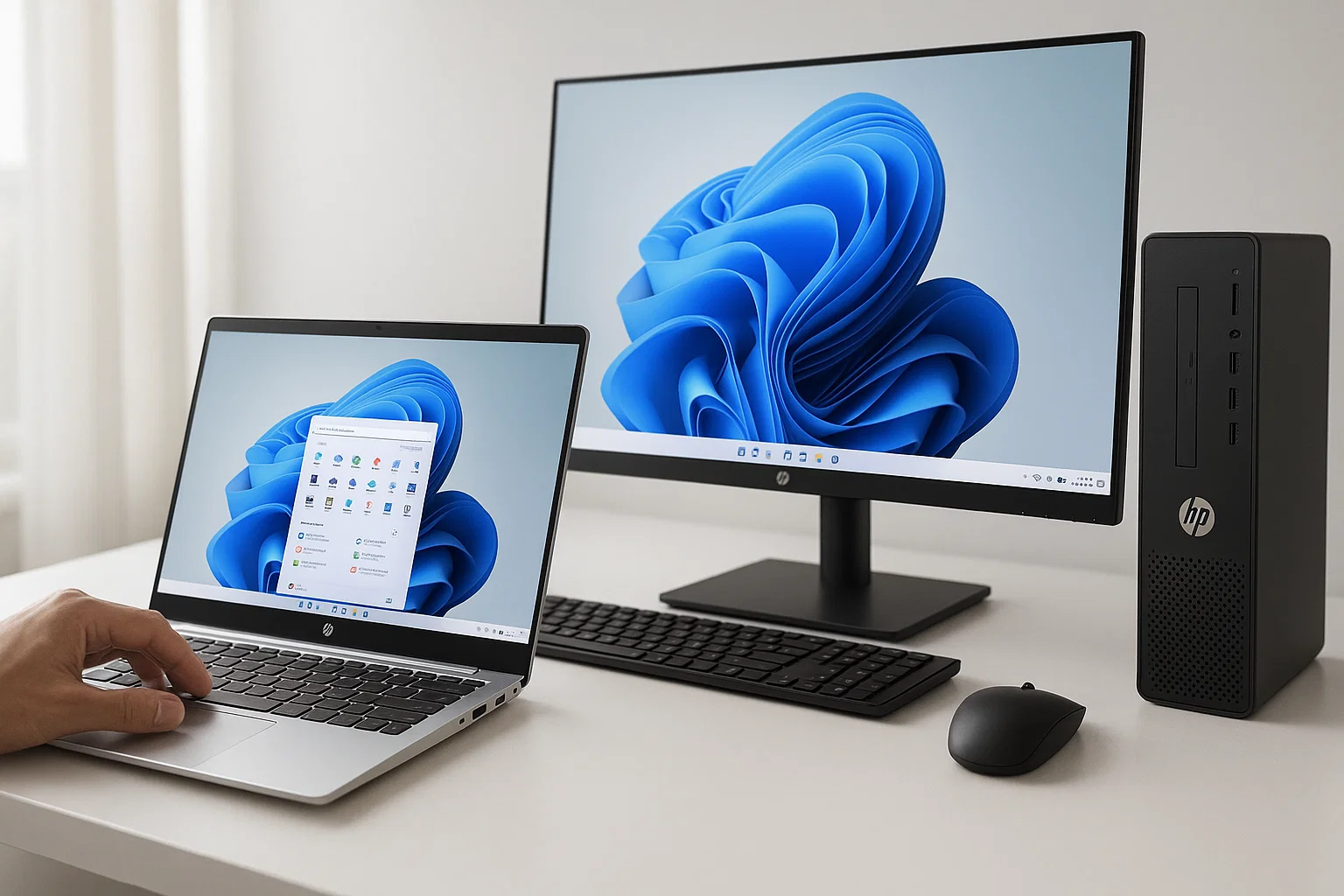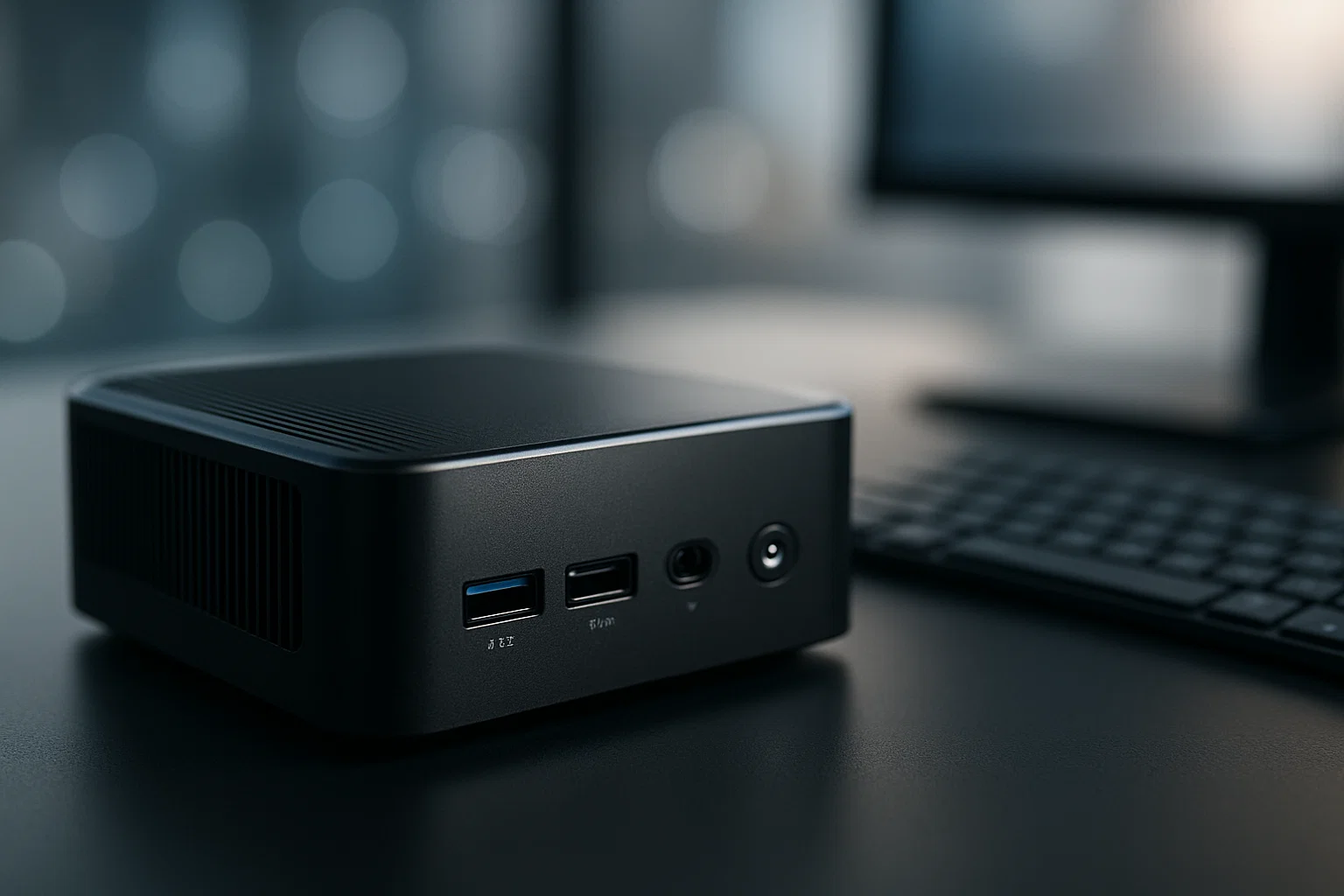
A mini PC gives full desktop power in a small footprint, ideal for home office, media, or light gaming. This guide shows why mini PCs matter, how to pick and set one up, and practical hacks to squeeze more performance with simple upgrades.
Introduction
mini pc devices are a powerful, space-saving option when you want desktop capability without a big case. This article is informational and practical — I explain what mini PCs are, why they matter for productivity and media, and show you step-by-step setup and optimization. You’ll see comparisons with small form factor and NUC-style systems, learn upgrade paths, and get tool recommendations for monitoring, cooling, and storage. In my experience, a properly configured mini PC gives almost the same daily feel as a full desktop, with lower noise and power draw.
What is a mini PC and why it matters
A mini PC is a compact computer built to deliver desktop-like performance in a much smaller chassis. Typically these devices use laptop-class or mobile CPUs, efficient cooling, and integrate components tightly — sometimes with soldered parts, sometimes with upgradeable slots for RAM and M.2 storage.
Background and evolution
Mini PCs evolved from barebones systems and Intel NUCs, aimed at users who want a tidy desk, media centers, or edge computing nodes. Over time, manufacturers improved thermal design and added more powerful chips, making mini PCs suitable for office work, light content creation, and gaming at moderate settings.
Why choose a mini PC
- Space and noise: They save desk space and are usually quieter than towers.
- Energy efficiency: Use less power, which helps on battery-backed setups and for 24/7 tasks.
- Portability: Easy to move between rooms or offices.
- Design: Clean, modern aesthetics fit work-from-home setups.
Who benefits most
- Remote workers and freelancers who need a clean workspace.
- Media center owners who want a silent HTPC.
- Developers and testers who need portable lab machines.
- Small businesses deploying compact POS or digital signage.
Key takeaway: Mini PCs deliver desktop convenience in a compact, efficient package without sacrificing essential performance.
How to pick, set up, and optimize your mini PC (step-by-step)
This practical guide walks you from picking to tuning a mini PC for real-world use.
- Define your workload
- List primary tasks: browsing, office, video editing, light gaming, or server tasks. This determines CPU, GPU (integrated or discrete), RAM, and storage needs.
- Select a model
- Choose between fanless, NUC-style, and small gaming mini PCs. Fanless units are silent but can throttle under heavy load.
- Buy components or a barebones kit
- If upgradeable, pick compatible RAM and an NVMe SSD. Check manufacturer compatibility lists.
- Assemble and initial setup
- Install RAM and M.2 SSD if applicable. Attach monitor, keyboard, and mouse. Power on and enter BIOS to verify settings.
# Example: quick SSD health check on Linux (copy-paste)
sudo apt update && sudo apt install -y smartmontools
# run a short health check (replace /dev/nvme0n1 with your drive)
sudo smartctl -a /dev/nvme0n1
Explanation: This shell snippet installs smartmontools and checks SSD health. Change package manager if not on Debian/Ubuntu. Minimal error handling — the commands will return errors if permissions or device names differ.
- Install the OS and drivers
- For Windows, use the manufacturer’s driver pack. For Linux, check community guides for specific models (some Wi-Fi or GPU drivers need tweaks).
- Optimize thermal and power settings
- In BIOS: enable power profiles, set fan curves if available. In OS: set balanced or performance profiles as needed.
- Monitor and test
- Run benchmarks or real workloads. Use monitoring tools to check temps and throttling.
# Example: simple CPU stress check and log temps (requires psutil)
import time, psutil

try:
    # run lightweight loop to simulate load
    for i in range(10):
        # sample CPU percent and temps
        cpu = psutil.cpu_percent(interval=1)
        temps = psutil.sensors_temperatures() if hasattr(psutil, "sensors_temperatures") else {}
        print(f"CPU {cpu}%, Temps {temps}")
        time.sleep(1)
except Exception as e:
    print("Monitoring failed:", e)
Explanation: This Python snippet uses psutil to sample CPU usage and temperatures. It's quick for checking behavior under light load. Install psutil via pip install psutil.
- Tweak for workload
- For gaming: set GPU drivers, update graphics profiles. For media: enable hardware decoding. For servers: tune power settings and NIC options.
Ready-to-copy code: The shell and Python snippets above help you quickly check drive health and CPU behavior after setup.
Best practices, tools, and pros/cons
Best practices
- Buy extra RAM if you multitask heavily.
- Prefer NVMe SSDs for snappy performance.
- Keep vents clear; small cases rely on airflow.
- Use a laptop cooling pad for passive fanless units during heavy sessions.
Recommended tools
- HWMonitor / HWiNFO — system monitoring, detailed sensors.
- Pros: Deep sensor readouts, logging.
- Cons: Windows only, complex UI.
- Install tip: Download the portable HWiNFO and run as admin.
- CrystalDiskInfo / smartctl — disk health and SMART checks.
- Pros: Early failure warnings.
- Cons: NVMe support sometimes limited in older tools.
- Install tip: Use
smartctlon Linux or CrystalDiskInfo on Windows.
- Stress-ng / Prime95 — stress testing CPU and thermals.
- Pros: Reveals throttling issues.
- Cons: Can shorten component life if misused.
- Install tip: Run short tests and monitor temps closely.
Pros of mini PCs
- Compact, lower power use, low noise.
Cons
- Limited upgradeability for some models, potential thermal throttling under sustained loads, sometimes higher price per performance compared to towers.
Challenges, compliance, and troubleshooting
Common challenges
- Thermal throttling: If temps spike, lower power limits or improve cooling.
- Limited I/O: Use USB hubs or PCIe expansion via external enclosures.
- Driver issues on Linux: Check model-specific forums and vendor docs.
Compliance checklist
- Verify firmware and BIOS are updatable.
- Ensure your OS and apps comply with privacy policies and local data protection laws.
- For business deployments, confirm warranty and support terms.
Legal and ethical considerations
- If using mini PCs for kiosk or POS systems, follow payment security standards like PCI requirements.
- For data handling, confirm GDPR/CCPA obligations if processing personal data. Consult a professional when in doubt.
Quick troubleshooting tips
- Re-seat RAM and SSD if system fails to POST.
- Boot from live USB to isolate OS vs hardware faults.
- Update BIOS only with stable releases.
Paraphrase: Hardware vendors stress checking BIOS and driver updates before diagnosing further to avoid common compatibility issues. (manufacturer docs)
Paraphrase: Search engine optimization for tech buyers recommends clear product specs and thermal data to reduce returns and support tickets. (Moz)
Accessibility, readability, and safety
Use large readable fonts and descriptive alt text for product images. For scripts and monitoring tools, ensure logs are accessible and explainable for users who rely on screen readers.
Compliance disclaimer: This guide provides general technical and legal pointers, not professional legal advice. Review privacy and ToS requirements for your region, and consult a qualified professional for compliance questions.
Conclusion + CTA
Mini PCs are a smart, versatile choice whether you want a tidy home office machine, a quiet media center, or a portable development box. They balance performance, efficiency, and size. If you want practical templates, setup help, or custom builds, Welcome to Alamcer — a tech-focused platform sharing free guides, bot templates, and custom development services. Explore our resources for ready-to-use automation and web projects, or contact us for a custom mini PC deployment plan.
Bold takeaways:
- Mini PCs save space and energy.
- Choose parts by workload, not just specs.
- Monitor temps after setup to avoid throttling.
FAQs
What is mini pc?
A mini pc is a compact desktop computer that packs desktop-class functions into a small case, often using mobile-class CPUs and M.2 storage, ideal for office, media, and light gaming tasks.
How much RAM does a mini PC need?
For general productivity 8–16GB is fine, while developers, content creators, or heavier multitaskers should aim for 16–32GB depending on workloads.
Can a mini PC handle gaming?
Yes, many mini PCs with discrete GPUs or powerful integrated graphics can handle gaming at 1080p with medium to high settings. Choose a model with active cooling and a capable GPU for best results.
Are mini PCs upgradeable?
Some are, with user-accessible RAM and M.2 slots, while others have soldered components. Check the vendor’s spec sheet before purchase.
Do mini PCs overheat?
They can under sustained heavy loads if cooling is limited. Use monitoring tools and consider undervolting or power profile adjustments to manage thermals.
Is a mini PC good for a home office?
Absolutely. They offer quiet, compact systems with enough power for office software, video conferencing, and light editing.
How do I connect external GPUs to a mini PC?
Some mini PCs support external GPU enclosures via Thunderbolt or compatible PCIe solutions. Verify port support and bandwidth before buying.
Can I run Linux on a mini PC?
Yes, Linux runs well on many mini PCs but check driver support for Wi-Fi and GPU. Community forums often have model-specific tips.
Is mini pc energy efficient?
Yes, mini PCs generally consume less power than full towers, making them suitable for always-on tasks and lower electricity cost.
How long do mini PCs last?
Lifespan depends on build quality and workload; with good ventilation and moderate use, many devices run well for several years.
External references & reading
- For platform and content guidelines see Google guidelines.
- For SEO and content optimization tips consult Moz.
- For product research and benchmarking review SEMrush and vendor official docs.