An external hard drive gives you portable storage for backups, media, and extra workspace. This guide explains what an external hard drive is, how to choose between HDD and SSD, setup tips, and recommended tools so you can buy the right drive and get it working fast.
Introduction
An external hard drive is one of the simplest, most practical ways to store, back up, and transport large amounts of data. This article is primarily informational and transactional — I’ll help you decide which drive to buy and how to set it up. You’ll get clear comparisons (HDD versus SSD), speed and connection recommendations (USB-C, Thunderbolt), and real-world tips for backup and security. I’ll mention related products early — like NAS devices and cloud backups — so you know where an external hard drive fits in your workflow. In my experience, a small investment in the right external hard drive saves you hours and stress later.
What is an external hard drive and why it matters
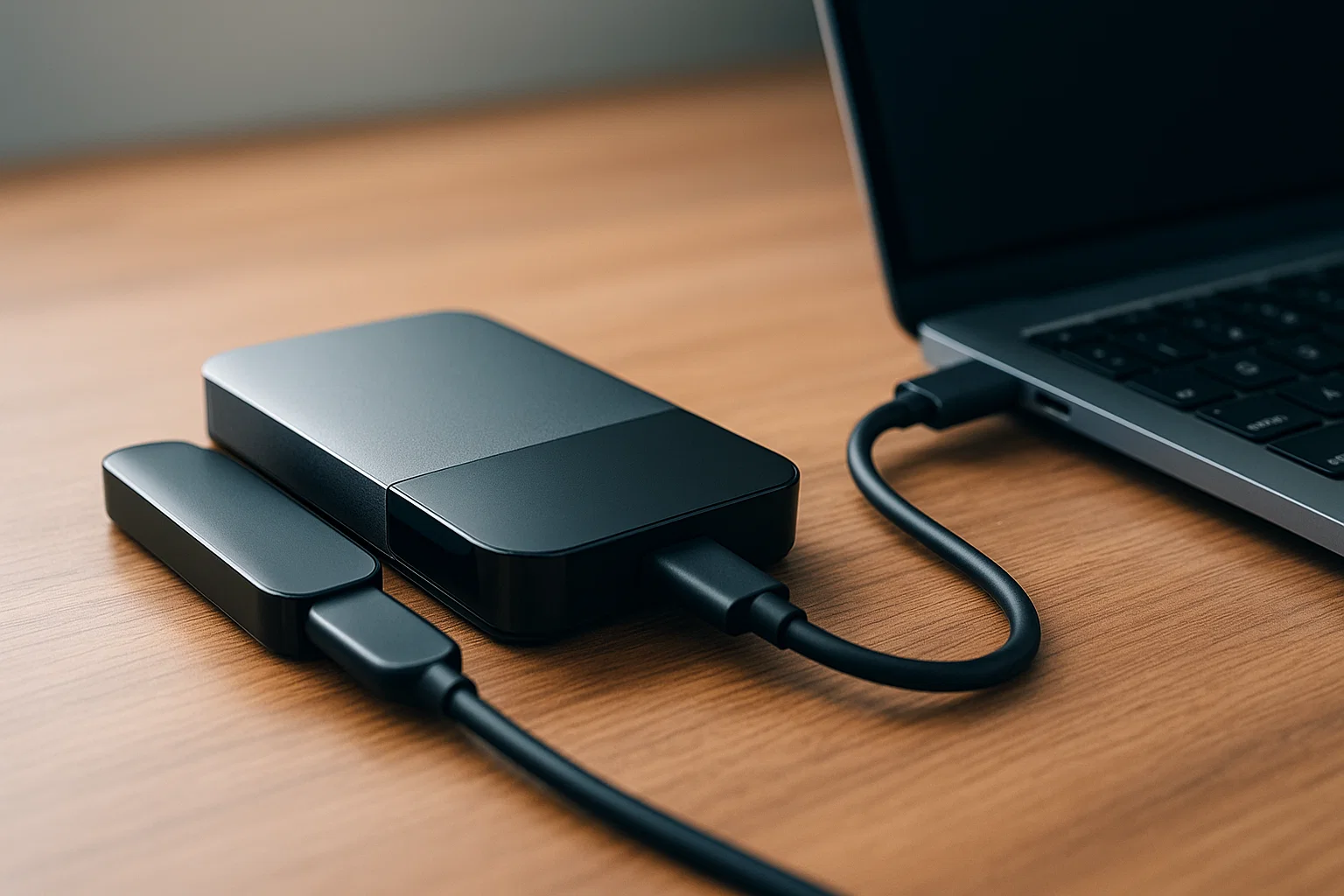
An external hard drive is a storage device that connects to your computer via a cable or network. It stores files the same way internal drives do, but it’s portable and often plug-and-play.
Core components and types
- HDD (hard disk drive): Magnetic platters, high capacity, lower cost per gigabyte, mechanical parts. Best when you need bulk storage for archives and media.
- SSD (solid state drive): No moving parts, much faster read/write speeds, more durable, higher cost per gigabyte. Great for running apps, editing video, or as a fast backup target.
- Enclosures & interfaces: SATA-based drives in USB enclosures, NVMe SSDs in portable Thunderbolt or USB-C enclosures.
Why an external hard drive still matters
- Offline control: You own your data, no subscription.
- Speed & cost trade-off: For many workflows (media editing, VM storage), external SSDs deliver real-time performance.
- Portability: Take large libraries or backups between workstations.
- Backup diversity: External drives complement cloud backup and NAS strategies.
Who should care
- Creators and editors needing fast scratch disks.
- Anyone requiring reliable backups without monthly fees.
- Professionals moving large datasets between sites.
Many reputable guides emphasize using local backup copies alongside cloud backups for resilience (Google guidelines).
How to choose and set up an external hard drive — step-by-step
Follow these practical steps to choose, buy, and set up the right external hard drive for your needs.
- Decide your primary purpose
- Archive large media: favor high-capacity HDD.
- Fast scratch disk or OS/apps: choose an NVMe external SSD or Thunderbolt SSD.
- Frequent travel: pick a rugged, SSD-based portable drive.
- Pick capacity and format
- Common sizes: 1TB, 2TB, 4TB, 8TB, higher.
- For compatibility with Mac and Windows, choose exFAT for read/write cross-platform, or format per system needs.
- Choose interface
- USB-C: Widely compatible and fast (USB 3.2 Gen 2).
- Thunderbolt: For top-end NVMe speeds, lower latency.
- USB-A / USB 3.0: Fine for bulk HDDs and compatibility with older machines.
- Check performance and endurance
- For SSDs, check TBW (terabytes written) or endurance rating.
- For HDDs, look at RPM (7200 better than 5400) and cache size.
- Buy and set up
- Unbox, connect, format to required filesystem.
- Create a first backup immediately and verify data integrity.
- Automate backups
- Configure Time Machine, Windows File History, or a third-party tool.
Quick copy example (Python) — copy files to an external drive with progress
# python
# Simple file copy with basic error handling and progress
import shutil
import sys
from pathlib import Path

src = Path("C:/Users/you/Documents/largefile.mov")
dst = Path("/mnt/external/backup/largefile.mov")  # adjust path

try:
    dst.parent.mkdir(parents=True, exist_ok=True)
    shutil.copy2(src, dst)  # copies metadata too
    print("Copy completed:", dst)
except Exception as e:
    print("Copy failed:", e, file=sys.stderr)
This script copies a single file. For many files, use a loop and add a progress bar library.
Example: list external drives in Node.js (practical)
// node
// Uses 'drivelist' package to detect connected drives
const drivelist = require('drivelist');

async function listDrives() {
  try {
    const drives = await drivelist.list();
    drives.forEach(d => {
      console.log(d.device, d.description, d.mountpoints.map(m => m.path).join(', '));
    });
  } catch (err) {
    console.error('Error listing drives', err);
  }
}
listDrives();
Install with npm install drivelist, then run. Useful for automation or UI apps that show removable media.
Best practices, recommended tools, pros and cons
Follow these best practices for reliability and performance.
Best practices
- Keep at least two backups: local external hard drive plus cloud or NAS.
- Encrypt sensitive data using built-in utilities or vendor tools.
- Verify backups with checksum or backup software.
- Label and store drives safely when not in use.
Recommended tools (three picks)
- Mac/Windows built-in formatting and backup
- Pros: Free, well-supported.
- Cons: Basic scheduling and options.
- Quick tip: Use exFAT for cross-platform transfers.
- Rsync (or GUI like FreeFileSync)
- Pros: Efficient, incremental sync, open source.
- Cons: Learning curve on command line.
- Quick tip: Test your rsync command with
--dry-runfirst.
- Acronis / Carbon Copy Cloner
- Pros: Full-disk cloning, easy recovery.
- Cons: Paid software for advanced features.
- Quick tip: Schedule weekly clones for critical systems.
Pros and cons summary
- HDD: Pros — cost-effective, large capacity. Cons — slower, fragile with drops.
- SSD: Pros — fast, durable. Cons — costlier per GB.
- Portable NVMe: Pros — blazingly fast for editing. Cons — requires compatible ports, higher price.
Reliable storage guides recommend combining local hardware backups with remote copies for resilience (Moz).
Challenges, compliance, and troubleshooting
External drives are simple, but there are common pitfalls and legal points to consider.
Common challenges & fixes
- Drive not recognized: try a different cable, port, or power supply; check Disk Management (Windows) or Disk Utility (Mac).
- Slow transfers: confirm cable rating and port speed, ensure the drive isn’t thermal throttling.
- Corruption after disconnect: always use “eject” or “safely remove” before unplugging.
Compliance checklist
- Encrypt personal or customer data to meet privacy rules.
- Keep access logs if the drive contains regulated data.
- If you process EU or California resident data, include this device in your GDPR/CCPA data protection plan.
Troubleshooting steps
- Test drive on another computer.
- Check device manager / system logs for errors.
- Run vendor diagnostics tools for SMART data.
- Recover using verified backups or recovery software.
Alternatives
- NAS for multi-user access and redundancy.
- Cloud backup for offsite redundancy and simple restore.
Compliance/disclaimer
This article provides general guidance and does not replace professional legal or compliance advice. Consult a qualified professional for specific regulatory obligations.
Conclusion + CTA
An external hard drive is a practical, cost-effective building block in any backup and storage strategy, whether you need archival capacity or a fast scratch disk. Choose HDDs for bulk storage, SSDs for speed, and always use encryption and a second backup method. Welcome to Alamcer, a tech-focused platform created to share practical knowledge, free resources, and bot templates. We make technology simple and useful. If you want step-by-step setup, backup automation, or a custom storage workflow, Alamcer offers free guides and custom development services on request. Ready to secure your data? Start with a good external hard drive and a backup plan.
Key takeaways:
- Pick SSD for speed, HDD for capacity.
- Always keep a second backup offsite.
- Use exFAT for cross-platform compatibility.
FAQs
What is external hard drive?
An external hard drive is a removable storage device that connects to a computer to store or back up files. It can be an HDD or SSD in a portable enclosure, and it’s used for portability, backups, and extra storage.
How do I choose between HDD and SSD?
Choose HDD for budget-friendly large capacity, and SSD if you need speed, durability, and lower latency. Consider your workflow — editing and OS performance benefit most from SSDs.
Are external hard drives secure?
They can be, if you encrypt data using tools like BitLocker or FileVault, and follow secure handling practices. Physical security and regular backups are crucial.
How do I format an external hard drive for Mac and Windows?
Use exFAT for read/write on both systems. For Time Machine on Mac, format as APFS or HFS+; for Windows-only use NTFS.
What's the fastest external hard drive option?
Portable NVMe SSDs connected over Thunderbolt or USB4 offer the fastest transfer speeds for real-world work.
Can I use an external hard drive for backups and daily work?
Yes. For backups use scheduled, incremental backups; for daily work use an SSD for faster application performance. Keep backups separate.
How long do external hard drives last?
Lifespan varies; HDDs are rated in mean time between failures and can fail due to mechanical wear. SSDs have TBW endurance ratings. Replace older drives proactively and keep redundant backups.
How do I recover files from a corrupted external hard drive?
Stop using the drive immediately. Try vendor diagnostics, then recovery tools or services. Regular, verified backups reduce recovery needs.
Do I need antivirus for my external drive?
Yes, scanning external drives helps prevent malware spread between systems. Use updated antivirus and safe file practices.
Is cloud backup better than an external hard drive?
They serve different purposes. Cloud backup provides offsite redundancy and accessibility, while external drives give offline control and often lower ongoing cost.
External links & resources
- Google guidelines (anchor text: Google storage and backup best practices)
- Moz (anchor text: SEO and content reliability tips)
- SEMrush (anchor text: keyword and content research tools)
- Official drive vendor docs (anchor text: drive setup and formatting guides)